


Most “free” AI coding tools come with an asterisk roughly the size of your monthly API bill.
OpenCode is a little different.
It’s an open-source AI coding agent that can work with models from OpenAI, Anthropic, OpenRouter, local model providers, and dozens of others. OpenCode says it supports more than 75 LLM providers, and you can mix and match them rather than tying your entire workflow to one model company.
And despite being a coding agent, you absolutely do not need to live in a terminal window wearing a black hoodie.
I use the desktop version.
Frankly, if you can operate ChatGPT, Claude, or pretty much any other AI app with a text box, you can probably figure out OpenCode.
So let’s do exactly that.
- Quick-start checklist
- First: What is OpenCode?
- Yes, OpenCode actually has free models
- Free has a price. This one is your data.
- How to set up OpenCode without becoming a terminal person
- Your free-model list may look different from mine
- You can also just subscribe to OpenCode
- Or bring your own AI
- Step 4: Tell it what you want, not how you would code it
- Step 5: Start small before handing it the keys to the Death Star
- What I’d actually recommend for a first project
- The best free model is the one appropriate for the data
Quick-start checklist
If you just want to get OpenCode running, here’s the short version:
- Open an existing project folder — or create a new empty one.
- Open the model picker and look for a model marked Free.
- If Muse Spark 1.3 Contributor Free is available, that’s a perfectly good place to start.
- Before using any free model, check its data terms and avoid feeding it sensitive, proprietary, or confidential information.
- If you want more predictable access, consider OpenCode Go or pay-as-you-go OpenCode Zen.
- If you already pay for models elsewhere, connect your provider using OpenCode’s provider settings.
- Give OpenCode a simple first task, such as: “Inspect this project and tell me what it does before changing anything.”
- Once you’re comfortable, ask it to build, fix, redesign, or automate something small.
That’s basically it.
You can get much more sophisticated later. But you do not need to understand APIs, terminals, model routing, or token pricing before you make OpenCode do something useful.
First: What is OpenCode?
OpenCode is an open-source AI coding agent available as a terminal interface, desktop app, or IDE extension. You can download the desktop builds directly from the official OpenCode download page.
Instead of opening ChatGPT, pasting in a snippet of code, getting an answer, copying that answer back into your project, realizing you copied the wrong thing, swearing softly, and repeating the process, an agent like OpenCode can work directly inside a project.
Give it a folder and it can inspect the files, understand how they fit together, make changes, and work through larger tasks.
That puts it in roughly the same category as tools like Claude Code, Codex, and other coding agents. If this whole category is still fuzzy, our beginner’s guide to AI agents goes deeper on what makes an agent different from a normal chatbot.
The important distinction here is that OpenCode is not the AI model.
Think of OpenCode as the vehicle. You decide what engine goes inside it.
OpenCode can connect to outside model providers, run local models, or use OpenCode’s own curated model service, Zen. OpenCode recommends Zen as an easy starting point for new users.
That flexibility is one of the big reasons I like it.
Yes, OpenCode actually has free models
Here’s where things get fun.
OpenCode regularly makes certain models available at $0 per token, generally for limited periods while the model teams collect feedback or promote a new release.
As of September 21, 2026, OpenCode’s current Zen listings include free options such as:
- Big Pickle
- MiMo-V2.5 Free
- Ling 3.0 Flash Fin Free
- Nemotron 3 Ultra Free
- Nemotron 3.5 Lightning Free
- Muse Spark 1.3 Contributor Free
- Jev 1.13 Free
For models without a dedicated public product page, the best source is the current OpenCode Zen model listing.
OpenCode describes many of these as limited-time offers, so don’t tattoo this list on anything important.
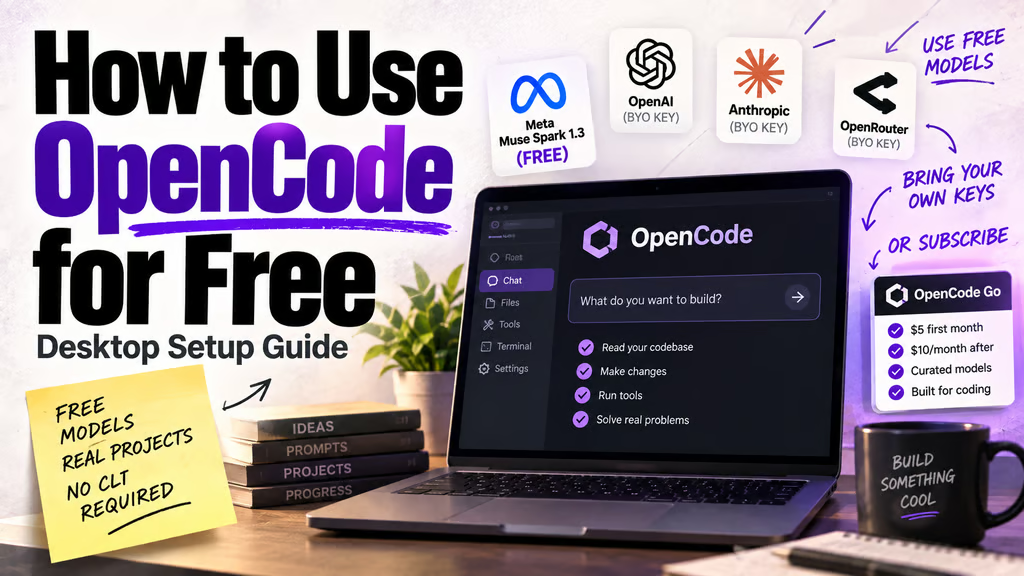
I’m currently using Meta’s Muse Spark 1.3 Contributor Free.
Meta designed Muse Spark 1.3 for longer-running agentic and coding work. The company says the new version is better at carrying context through extended tasks and uses fewer unnecessary turns and tool calls than its predecessor.
And right now, OpenCode is letting me use it for free.
There is, however, a reason the word Contributor is sitting there.
Free has a price. This one is your data.
OpenCode’s documentation says the free Muse Spark 1.3 Contributor endpoint gives Meta permission to use your prompts and completions to train future models.
That’s the trade.
Personally, I don’t think that automatically makes the free model a bad deal. It means you should think about what you’re putting into it.
If I’m prototyping a goofy little web app, building a personal utility, experimenting with an idea, or creating something I wouldn’t mind publishing on GitHub tomorrow?
Sure.
Meta can admire my terrible first draft of index.js.
If I’m working on proprietary company code, client information, credentials, unreleased financial data, personal information, or anything else sensitive?
Absolutely not.
And Muse isn’t the only free option with strings attached. Some free endpoints come with their own trial-use, privacy, or data-handling terms.
So the rule is wonderfully uncomplicated:
Don’t give a free model anything you wouldn’t be comfortable contributing under its stated data terms.
For everything else, the deal can be pretty darn compelling.
It’s certainly more than Google Chrome has ever given me for my data.
How to set up OpenCode without becoming a terminal person
You can install OpenCode through a terminal.
I am not going to make you.
OpenCode has a dedicated desktop app for macOS, Windows, and Linux.
That’s the version I prefer, and for someone coming from ChatGPT, Claude, or another consumer AI app, it’s probably the least intimidating place to start.
Step 1: Download OpenCode Desktop
Head to the OpenCode download page and grab the desktop build for your operating system.
Install it like a normal application.
That’s it.
No summoning ritual involving Homebrew is required.
Step 2: Give OpenCode a folder to work in
Coding agents work best when they have an actual workspace.
Open an existing project folder, or make a new empty folder for whatever you want to build.
If you’ve never built software before, don’t overthink the word “project.”
A folder called:
my-weird-ai-experiment
is a project.
Congratulations. You’re a developer now. Please begin complaining about JavaScript frameworks immediately.
Step 3: Pick your model
This is where OpenCode gets interesting.
You aren’t locked into whatever AI company made the application.
OpenCode supports more than 75 LLM providers and allows you to connect external providers with your own credentials. You can explore the full setup options in the OpenCode provider documentation.
If you want the free route, start by looking through the OpenCode-provided models for anything marked Free.
Right now, I’d start by checking whether Muse Spark 1.3 Contributor Free appears in your model picker.
If it doesn’t, don’t panic.
Your free-model list may look different from mine
The free roster changes.
That’s not a bug. It’s part of the deal.
Models may be free while companies gather feedback, encourage developers to try a new release, or otherwise subsidize access. OpenCode itself labels several of the current free endpoints as limited-time offers.
So if you’re reading this in three weeks and Muse has disappeared while some new model called MegaLlamaDragonCoder-7 has taken its place, the basic advice hasn’t changed.
Trust the current model picker and OpenCode’s pricing page more than any static list in an article.
Today I might use Muse Spark.
Next month it could be something I’ve never heard of.
That’s part of the fun.
You can also just subscribe to OpenCode
Free models aren’t your only option.
OpenCode also offers OpenCode Go, an optional subscription designed to give users predictable access to a curated group of coding models without requiring them to juggle a pile of separate provider accounts.
At the time of writing, OpenCode is advertising Go at $5 for the first month and $10 per month after that. The included model lineup can change, so check the current OpenCode Go page before signing up.
And importantly:
You don’t need Go to use OpenCode.
It’s just another option.
Think of it as the easy button for someone who likes OpenCode as the interface and wants a predictable monthly bill instead of thinking about token prices every time they choose a model.
OpenCode Zen works differently. Zen is pay-as-you-go: add credit and you’re charged based on the model and token usage.
That’s also where the rotating free models live.
So you’ve really got four paths:
- Use the rotating free models and pay attention to their data terms.
- Subscribe to OpenCode Go for a simpler monthly option.
- Use OpenCode Zen and pay for exactly what you consume.
- Bring your own provider and use whatever account or API access you already have.
You can start free and figure out the rest later.
That’s what I’d do.
Or bring your own AI
The free models aren’t the only reason to use OpenCode.
You can also connect your own model providers.
OpenCode supports providers including OpenAI and Anthropic, along with OpenAI-compatible services, OpenRouter, and local-model setups.
That means your setup could look something like:
Free experimentation: Muse Spark or another current free model.
Cheap regular use: OpenCode Go.
Occasional premium model: pay as you go through Zen.
Specific model you already pay for: connect the appropriate provider.
Model shopping: use OpenRouter.
Local/private experiment: run a model on your own hardware.
All inside the same basic workflow.
That model independence is probably OpenCode’s biggest long-term advantage.
We spend a lot of time arguing about whether GPT, Claude, Gemini, Grok, Muse, or whatever launched Tuesday afternoon is “best.”
OpenCode’s answer is basically:
Why marry one?
Step 4: Tell it what you want, not how you would code it
This is the part where non-developers tend to make things harder than necessary.
You don’t need to begin with:
Create a React application using TypeScript and Tailwind CSS with...
unless you actually care about those things.
Start with the outcome.
Something like:
Build me a simple webpage where I can paste a block of text and it estimates how long it would take to read aloud. Make it clean, easy to use, and runnable locally.
Then let the agent work.
Once it has something running, react to what you see.
“The text box is too small.”
“Add a dark mode.”
“Let me export the result.”
“This looks like a government website from 2008. Please make it less depressing.”
That feedback loop is where coding agents become useful for people who don’t particularly care about coding.
You’re managing the result.
The agent can worry about semicolons.
Step 5: Start small before handing it the keys to the Death Star
Coding agents can modify lots of files very quickly.
That’s simultaneously their superpower and the part where things occasionally become hilarious.
For your first few projects, use folders containing work you can afford to break.
Better yet, use Git or make copies before experimenting.
And ask the agent to explain its plan before making a sweeping change.
Something as simple as:
Before changing anything, inspect the project and explain what you plan to modify.
can save you from discovering that your helpful robot intern decided the cleanest solution was rebuilding civilization from scratch.
If you want to go deeper on working with coding agents once you get comfortable, our Claude Code guide covers many of the same concepts around projects, agent workflows, verification, and letting AI work directly against real files.
Most of those principles transfer.
What I’d actually recommend for a first project
Don’t start by handing OpenCode the codebase for your employer’s primary product and saying, “Have fun.”
Make something disposable.
Build a tiny calculator.
Make a ridiculous game.
Create a personal dashboard.
Give it an ugly webpage and ask it to make it less ugly.
Take one of those project ideas you’ve had sitting in a note for eight months and see how far you can get in an hour.
Use one of the currently free models and learn how the workflow feels before you worry about whether you’ve selected the world’s absolute best coding model.
That’s the sneaky benefit of OpenCode’s free offerings.
The free tokens matter.
But they also remove the psychological tax of experimentation.
When every prompt isn’t making you wonder what you’re spending, it’s much easier to say:
“What happens if we try this?”
And that’s where you start learning what these agents are actually capable of.
The best free model is the one appropriate for the data
It’s tempting to reduce all of this to:
FREE AI! GO GO GO.
But the more useful lesson is that AI pricing is becoming increasingly weird.
Providers want developers to try models. They need feedback, evaluations, adoption, real-world usage, and — in some cases — training data.
Sometimes they subsidize the tokens. Sometimes you’re contributing data. Sometimes you’re paying $10 a month. Sometimes you’re bringing a key from somewhere else.
OpenCode lets you make that decision at the model level instead of forcing you to adopt an entirely different coding environment every time the economics change.
For hobby projects and disposable experiments, I think the free-model trade can be excellent.
For sensitive work, use a model and provider whose privacy and retention terms actually match the job — even if that means spending a few dollars.
And if you get tired of chasing whatever happens to be free this week, OpenCode will happily sell you a subscription too.
The good news is you don’t need a different coding app for each decision.
Download one application.
Point it at a folder.
Pick your model.
Describe what you want.
And if somebody else is willing to pick up the token bill this week?
I’m not going to argue with them.
